 When you click on links to various merchants on this site and make a purchase, this can result in this site earning a commission. Affiliate programs and affiliations include, but are not limited to, the eBay Partner Network. When you click on links to various merchants on this site and make a purchase, this can result in this site earning a commission. Affiliate programs and affiliations include, but are not limited to, the eBay Partner Network.
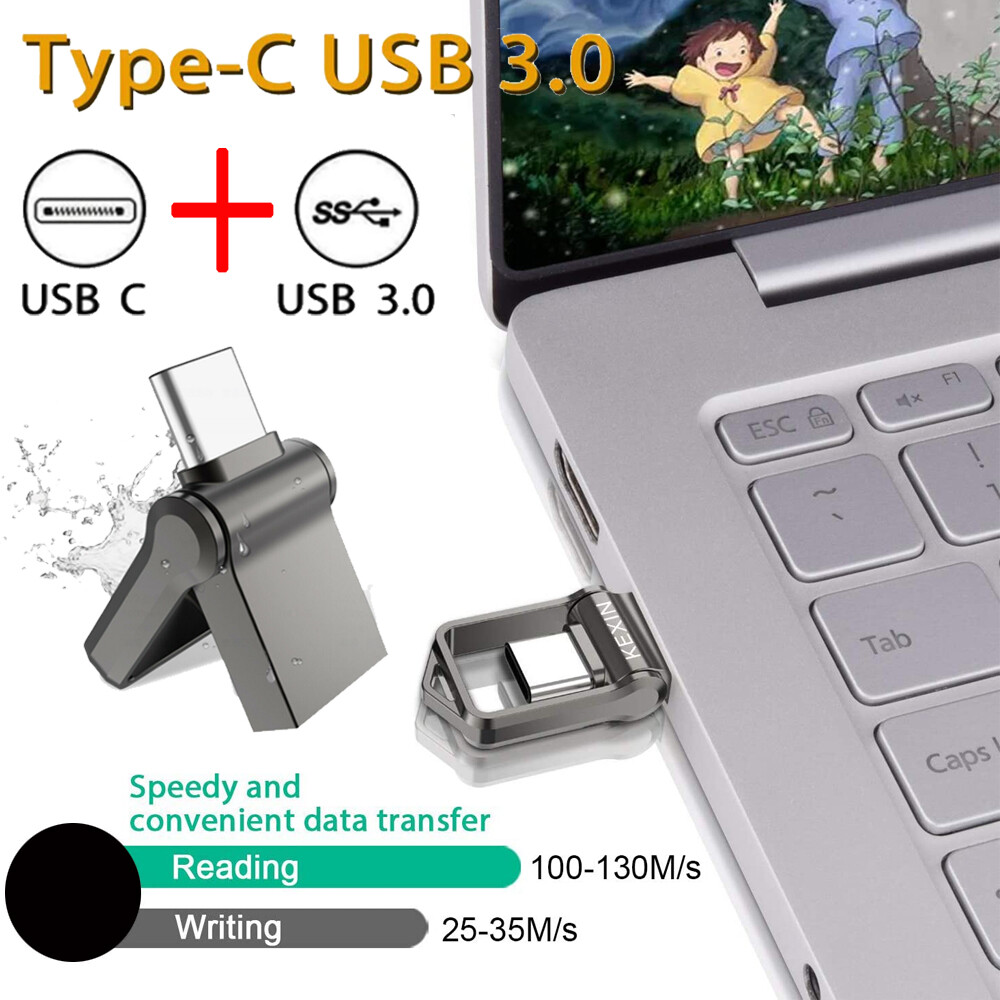
Dual USB Flash Drive Type C & USB 3.0 Drive 2-in-1 USB Memory Stick Please READ carefully before purchase: Looking for storage that works across your USB Type-C and Type-A devices? KEXIN Dual flash drive can let you easily move files between USB Type-C smartphone, tablets and Macs and USB Type-A computers. - Mobile device requires USB Type-C port and On-The-Go (OTG) support.
- This is mini and ultra fast USB stick with metal cover, all these would cause the USB stick getting hot quickly. But don't worry, it's normal and safe. Please pull off the USB stick when not in use to protect the USB drive and it would be cold down quickly.
- FAT32 can NOT support transfer files larger than 4GB. Please format the USB stick into exFAT or NTFS if the files larger than 4GB.
- 1GB=1,000,000,000 bytes. For the computer: 1GB=1,073,741,824 bytes. Actual user storage less.
- 32GB: available capacity is about 28GB-30GB.
- 64GB: available capacity is about 58GB-60GB.
- 128GB: available capacity is about 110-120GB.
Read more At a glance - The 2-in-1 flash drive with USB Type-C and Type-A connectors.
- Seamlessly move content between your USB Type-C and Type-A devices.
- Free up space on your USB Type-C smartphone.
- High-performance USB 3.1 Gen 1 drive with 110MB/s read speeds
- Product Dimension: 32.5*15.2*6.4mm (±0.2mm)
- Product Weight: 7g
- Material: Alloy
Default drive format is exFAT - This is the format recognized by smartphones, tablets and laptops that is activated type C Port.
- Back up your data first before formatting or your data may be lost.our phone has OTG function.
Dual USB Flash Drive OTG USB C 3.1 Interface - Huawei Matebook 13 / Matebook X / Matebook X Pro
- Huawei P40 / 40 Pro / P20 / P20 Pro / P30 / P30 Pro / P30 Lite / Mate 20
- Xiaomi Redmi Note 7/7 Pro, Mi9 / Mi8, Mix 3 / Max 3
- Honor, Oneplus, and other type-c and OTG enabled android smartphones
- Google Chromebook Pixel / Pixel C, Google Pixel / Pixel XL
- Xiaomi Mi Air and other USB Type C and OTG enabled devices
USB 3.0 Interface Works with desktop, laptop, tablet, speakers, TV, printer, carstereo and more. Compatible System: Windows 7/8/10/Vista/XP/2000/ME/NT, Linux 2.6 and Mac OS 8.6 or higher. Read more Wide Compability - Large capacity up to 64GB is enough to store all your daily work files, school presentions, entertainment.
- Support multi-file formats, such as audio, music, video, movies, documents, pictures, etc.
Free Up Mobile Storage - Out of space on your USB Type-C smartphone?
- Simply plug in KEXIN dual USB drive and easily move files off your device, freeing up valuable space. With all that extra space you can do more travel photos, movies, music, games and whatever else you want.
Fast Transfer Speed - USB 3.0 performance for read speed of up to 110 MB/s and 30 MB/s write - so you’re not waiting for content-rich files to transfer.
- Plug and play, no need extra software and APPs.
Durable to Last Long - The memory stick is waterproof and shockproof.
- Small and lightweight to toss it in your bag or pocket. Attach your drive to your keyring or lanyard to keep it convenient and secure.
Read more ► How to connect to phone? (Please enactive the Phone's OTG function first)!!!! If your phone can not work, please make sure your device features USB C Port and support OTG function, not all mobile phones and tablets can support OTG function. And you need open mobile phone set open OTG connection. - Plug KEXIN usb memory stick into your Android phone, check the top of Android phone for the USB symbol, it shows "System UI" that mean the USB stick has been sucessful connected.
- You can see the information "General USB Drive", for tranferring photos and media, click "View", you will see some existing folders.
- Click the folder to open the files, choose the files you want, click "Copy" or "Move" to the "General USB Drive", and then click "Paste" or “Move”.
- Glide your finger downward on the phone's home screen to display the notifications panel to back to the “General USB Drive” to eject or uninstall the usb drive.
 |
|