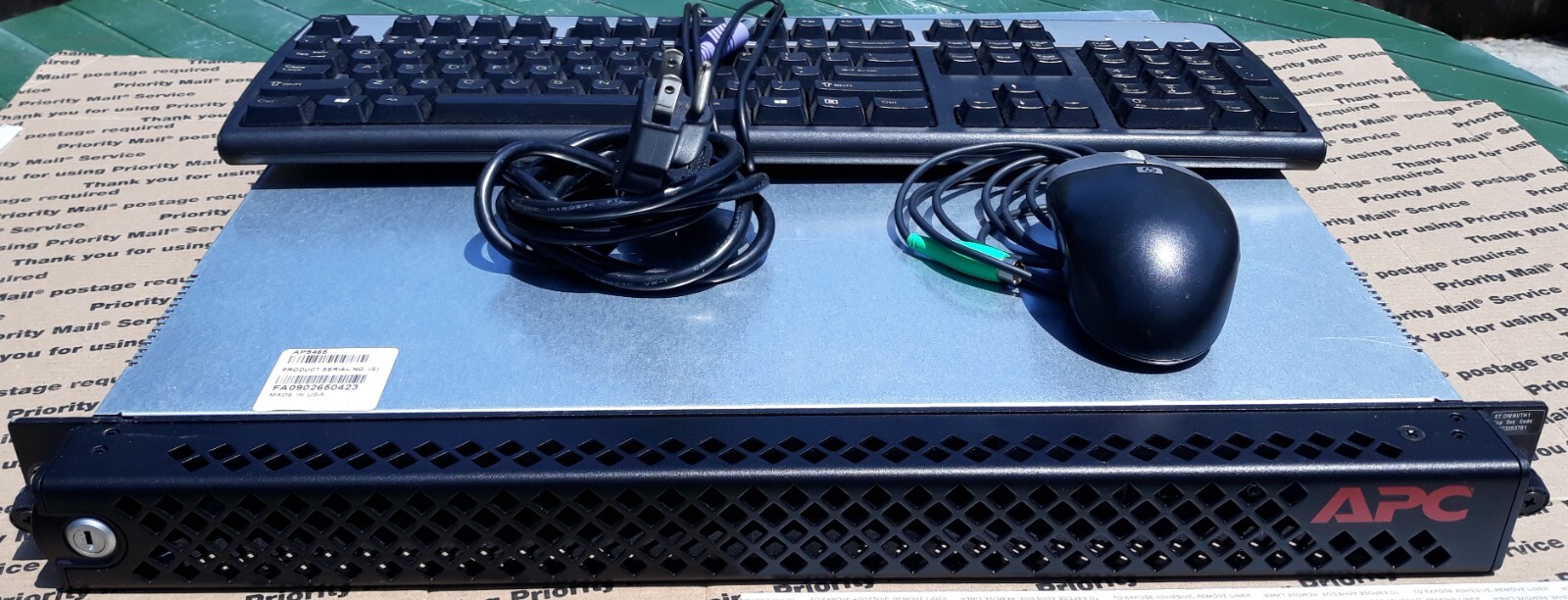
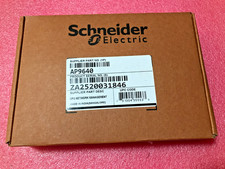
APC AP9465 Data Center Expert Server.-Keyboard-Mouse includedNo Hard Drive -No OS- No Monitor-No key to open front cover.Power button can be accessed thru front cover holes.Sold as seen in Photos.Data Center Expert Virtual Appliance:
The Data Center Expert Virtual Appliancevirtual appliance monitors up to five device nodesand one surveillance node. You can purchase a license key to upgrade to a productionversion to monitor additional device nodes and activate supported applications, or to migratefrom a Data Center Expert server hardware version to a Data Center Expert virtualappliance.Note: VMware ESXi 4.1.0 was used as the reference virtualization platform during thedevelopment of the Data Center Expert 7.x virtual appliance, and is the first supportedvirtualization platform. The Data Center Expert virtual appliance is delivered as an OVA(Open Virtualization Archive). Although it may function properly on any virtualizationplatform that supports this format or has an appropriate converter utility, only VMware ESXihas been tested and is supported.To use the full-featured demo version of the Data Center Expert virtual appliance, youdownload the *.ova file from the APC web site, and deploy it to your virtualization platformusing the default hardware configuration. For more information, see Data Center Expertvirtual appliance equivalent configurations.The demo version monitors a maximum of five device nodes and one surveillance node bydefault. You must upgrade the Data Center Expert virtual appliance demo to the productionversion to monitor 25 device nodes (as displayed in the Data Center Expert client "LicenseKeys" display), add license keys to monitor additional nodes, or activate supportedapplications.Note: You can add an additional network adapter to enable private networking, or addadditional hard disks to increase storage, after the OVA template is deployed.To upgrade the demo to the production version, you must purchase and apply an activationkey, available on the APC web site. To monitor additional device nodes or activatesupported applications, you must purchase and apply node license keys and applicationlicense keys for the virtual appliance.To migrate a Data Center Expert hardware server to a virtual appliance, you must purchaseand apply an activation key, and contact APC Support for new node license keys andapplication license keys for the virtual appliance. To receive these keys, you are requiredto provide a unique MAC address and serial number for the Data Center Expert virtualappliance, and for the Data Center Expert hardware server you are replacing.A unique serial number is generated for the Data Center Expert virtual appliance at startup.It is displayed in the "About Data Center Expert" display, accessed from the Help menu.Note: The serial number for a Data Center Expert hardware server appears only on itsserial number sticker.This section of the Data Center Expert Virtual Appliance help fully describes deployingthe Data Center Expert virtual appliance, and the upgrade and migration processes. It isavailable as a separate printable document on the APC web site.About changing hardware resource settings for the Data CenterExpert virtual appliance:After you have deployed the OVA, you can make changes to the Data Center Expert virtualappliance settings from your virtualization platform client interface. You use apcsetup asthe username and password.Network settings: You can configure an additional network adapter to enable the privatenetwork (APC LAN) as the apcsetup user or through the Data Center Expert client.MAC Address settings: A unique MAC address is required for each Data Center Expertvirtual appliance. If the MAC address originally assigned to the primary or secondarynetwork interface is changed, an error will occur on the primary interface, and the virtualappliance will not start. A message will be displayed indicating the MAC address expectedbefore normal startup will be allowed.Hard disk settings: To increase storage for the virtual appliance, you can create additionalhard disks. You cannot change the size of an existing hard disk, or remove a hard disk onceit has been created. An error will occur on the primary interface, and the Data CenterExpert virtual appliance will not start.Changes in the disk space will take effect once the Data Center Expert virtual appliancehas restarted.The "Storage Settings" display, accessed from the Server Administration Settings optionin the System menu, shows the total storage space available for the virtual appliance, notthe individual hard disks.Note: To store large amounts of surveillance data, using a remote repository isrecommended.RAM settings: You can add RAM to the Data Center Expert virtual appliance. You mustgracefully shut down the virtual appliance to configure the settings.CPU settings: You can add CPUs to the Data Center Expert virtual appliance. You mustgracefully shut down the virtual appliance to configure the settings.StruxureWare Data Center Expert 7.9.35Note: VMware supports fault tolerance on virtual machines with 1 CPU only. Please referto your vendor's documentation for more information about fault tolerance.