 When you click on links to various merchants on this site and make a purchase, this can result in this site earning a commission. Affiliate programs and affiliations include, but are not limited to, the eBay Partner Network. When you click on links to various merchants on this site and make a purchase, this can result in this site earning a commission. Affiliate programs and affiliations include, but are not limited to, the eBay Partner Network.
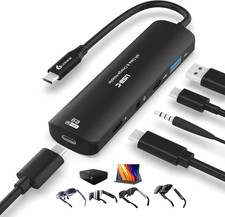
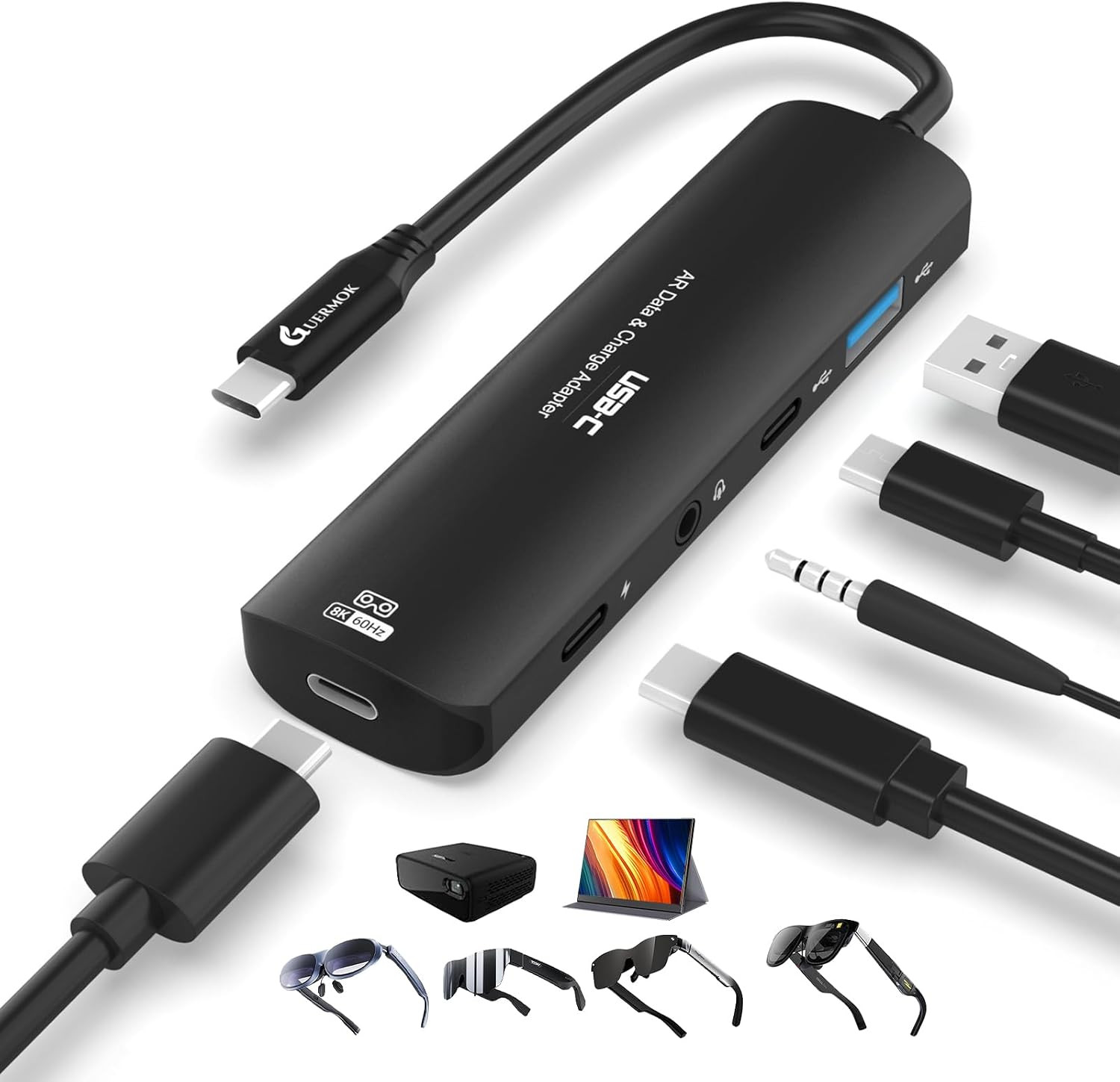
Product description The Type-C fast charging port supports up to 100W PD and is intended exclusively for upstream fast charging of computers and mobile phones. It does not support downstream fast charging for display devices Please make sure that the USB-C port of the input device supports audio and video transmission, otherwise this product cannot be used;Connect the 3.5mm audio jack for audio playback and calls using headphones or external speakers, and the sound of external AR glasses or monitor will be switched -
Google Pixel 7 or earlier and Moto G series don't support AR output, please avoid using them -
Make sure the device supports DisplayPort Alt Mode and PD fast charging -
Before connecting, make sure that the AR glasses support USB-C video and audio transmission 1 5 in 1 Port Details 2 PD100W Charge 3 Wide Compatibility 4 Compatibility List 5 Incompatibility List -
No Audio Output: Check if the 3.5mm connector has been selected as the default audio device, and manually select the sound output channel when the computer device does not switch automatically. -
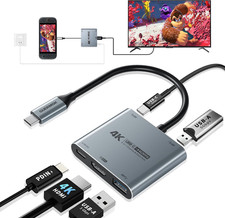
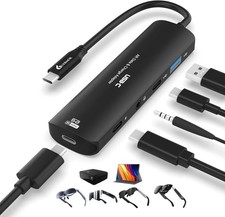
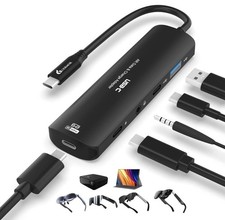
Switch-activated TV Mode: Use the original Switch power adapter, or use the included USB-C charging cable and an adapter that supports 15V, 3A output. This product supports up to 8K@60Hz and is backward compatible with 4K, 2K, 1080P, and 720P. It also supports 1080P@144Hz and 1080P@120Hz. For optimal resolution and refresh rate, ensure both input and output devices support the required specifications Note: If there is no sound when the USB C adapter is connected to the XREAL Air/Air 2/Air 2 Ultra/Air 2 Pro seriesl AR glasses: 1. please update your Xreal glasses firmware to the latest version (update in the Xreal app on your phone). 2. After upgrading, press and hold Brightness - (one beep) and release; then press and hold Brightness + (two beeps), the screen will briefly go black and both audio and video will be displayed simultaneously If there is no sound when the USB C adapter is connected to the XREALI One/One Pro series: Please Double click on “X" Key: Enter Settings Mode;Click on "_" Key: Enter Audio Mode, Enter Audio Protocol;then click on “X" Key: Confirm to choose《DP Mode》. Switch Connection Guide: 1. TV Settings: Select '1080p' for resolution and 'Auto' for audio. 2. Connect the USB-C connector to the USB-C port on the bottom of the Switch and detach the joystick. 3. Activate TV mode:Use the original Switch power adapter, or use the supplied USB-C charging cable and an adapter that supports 15V, 3A output. Note: Switch is sensitive to power requirements, and TV Mode must be powered by a power source that meets these requirements in order to function properly. If the screen does not turn black, check the power adapter specifications. - 【5-in-1 USB-C AR Glasses Adapter】Switch2 is not supported. This versatile all-in-one AR Glasses adapter integrates multiple essential functions in one compact device: USB-C video output supporting up to 8K@60Hz for stunning visuals, 100W PD fast charging to power your upstream devices, USB-A and USB-C data ports with high-speed 480Mbps transfer rates, and a 3.5mm audio jack for clear sound. It’s designed to simplify and enhance your AR/XR setup for work, gaming, streaming, and video calls
- 【8K@60Hz Display & Clear Audio】Supports ultra-high-definition video output up to 8K@60Hz and 4K@60Hz via USB-C, delivering crisp and immersive visuals for AR/XR glasses such as XREAL Air, Rokid Air, and more. Ideal for watching movies, gaming, or mirroring your device screen with rich color and smooth frame rates. Please make sure your AR glasses and source device support video and audio transmission over USB-C to unlock the full experience
- 【PD 100W Fast Charging for Source Devices】This usb-c charging hub adapter delivers up to 100W of power via the PD port to fast-charge upstream devices like laptops, smartphones, or gaming consoles—ensuring stable performance during high-demand AR/XR use. Simply connect a PD-compatible charger (60W or higher is ideal) to the power port to charge your source device while simultaneously outputting video, audio, and data. Note: This port does not charge USB-C displays or AR glasses
- 【Wide Compatibility, One-Way Signal】Designed for USB-C video-enabled devices, this AR Hub Glasses Adapter supports top AR models like XREAL Air (formerly Nreal Air),RayNeo Air, Rokid Air, and Thunderbird Air. Seamlessly connect your USB-C host devices—such as Switch (with USB-C), Steam Deck, iPhone 15/16, Android phones, MacBook, and laptops—to enjoy immersive visuals on a virtual big screen. Note: Signal flows only from USB-C host (e.g., phone/laptop) to USB-C display (AR glasses); not offerirectional. Not compatible with HDMI-only devices, Quest, or Studio Display
- 【Plug-and-Play & Audio Support】Multiport AR Glasses Converter features an aluminum housing for efficient heat dissipation. No drivers needed — just plug and play, ideal for mobile AR gaming, travel, or office use. For XREAL users with no sound, update firmware and long-press the “+” button until two beeps. If audio doesn’t switch automatically, set the 3.5mm port as default output manually. Package includes: 1× USB-C to USB-C 5-in-1 Hub, 1× User Manual. Note: No cable included
 |
|