Rescuezilla LIVE USB
64bit - LIVE USB 3.0 Version
Disk Imaging For All
Disk imaging makes a backup of your computer's hard drive which is managed as files stored on an external hard drive. If your hard drive fails, you can restore your disk image andwithin a few minutes all your documents and settings will be restored to the exact same state they were in when the last snapshot was taken.
Rescuezilla lets youperform backup, restore and recovery actions, even if you aren't able to boot into your regular operating system. It does not matter if you use Windows, Mac or Linux. It doesn't matter if you can't even login. Your computer will load a complete mini operating system. with a point-and-click user interface into your computer's memory without writing any information to your hard drive.
Included Applications: Image Viewer
Text Editor
Screenshot
Terminal
Disk Information
Create Bootable ISO
File Recovery and Backup
Gparted
Hardware Lister
Photograph Deep Scan
Disk Usage Analyzer
Network Configuration (Wireless or Wired)
Features:
Rescuezilla is a backup/recovery solution.
It’s a Clonezilla GUI that's fast, feature-packed
and very easy-to-use, even for everyday computer users.
No InstallationNeeded
You don't have to install Rescuezilla. And you don't even need to have an operating system installed to recover. Just insert the USB/DVD into your PC and reboot.
It's Easy-To-Use
Rescuezilla provides a point-and-click interface with network access and a complete operating system (based on the Ubuntu GNU/Linux distribution). Open other applications while your system backup is being transferred.
Fully Inter-Operable with Clonezilla
Rescuezilla is the Clonezilla GUI (graphical user interface) that you've always wanted. It is carefully developed to be fully inter-operable with the industry-standard Clonezilla, trusted by tens of millions of individuals and businesses for almost 20 years. Backup images made using Clonezilla can be restored with Rescuezilla, and vice versa!
Works with Virtual Machine Images
Rescuezilla works with images created by virtual machines: VirtualBox (VDI), VMWare (VMDK), Hyper-V (VHDx), Qemu (QCOW2), raw (.dd, .img), in addition to all known open-source imaging front ends (including Clonezilla).
Extract Files From Your Backup Images (beta)
Rescuezilla makes it easy to access your files that are saved within all supported backup image formats, including virtual machine images. You won't need to struggle with the command-line!
It's great for largeuncompressedimages (including virtual machine images), but will be too slow for larger images using gzip or zstandard compression until Rescuezilla implementsindexed access using ratarmount (task #153).
Boots in Seconds
The system boots in about 30 seconds from USB, and all your hardware gets detected automatically. It uses minimal space and resources, and you can copy it freely. No licenses or serial numbers!
Works with Windows, Mac or Linux
Some backup solutions only work with Windows, some only work with Mac, and some only work with Linux. But with Rescuezilla, any computer user can save and restore all machines with the same tool.
Access Your Files
Can't boot or log in, but need files from your PC?No problem:just pop the Rescuezilla USB in, reboot, and you can copy your documents to another drive, a network-shared folder, or a USB stick.
Recover Lost Data
If you accidentally delete a file or empty your Recycle Bin, simply shut down the computer, insert the Rescuezilla USB, and open the file recovery tool, which will undelete your files and save them to another drive.
Easy Internet Access
Is your computer broken, but you need Internet access to download drivers or read documentation? In about one minute, you can insert the Rescuezilla USB, reboot, and be browsing the Internet.
Drive ConfigurationTools
Graphically edit, manage, and resize partitions to take full advantage of your drive's capacity. Access powerful drive management and partition editing tools from the Rescuezilla start menu.
Available in many languages
Rescuezilla has been translated into several languages. If your language is not yet listed, you can submit a translation by following the instructions atTranslations HOW TO.
Complete Suite of Tools Included
In addition to the Rescuezilla imaging utility, the live USBprovides many essential graphical tools and command-line utilities that system administrators will find invaluable. Everyone from novices to advanced power users are finding that Rescuezilla makes life easier.
More Features, Less Complex
Rescuezilla has the most features coupled with the simplest, most user-friendly interface:
• Easygraphical user interfaceboots from USBin seconds
• No installation needed; runs from a USB stick or a CD-ROM
• Saves and restoresWindows, Mac and Linuxmachines
• Fully interoperable with Clonezilla, the industry-standard trusted by tens of millions
• Supports images made byVirtualBox, VMWare, Qemu and all known open-source imaging front ends including Clonezilla!
• Easilymount any supported image and copy out your files(beta)
• Access your fileseven if you can't log in
• Recover deleted pictures,documents, and other files
• Internet access with a full-featured browser
Rescuezilla does not run from inside Windows or any other operating systembecause it is one!You must restart your computer with the USB inserted in order to use Rescuezilla. To boot from the USB, you may need to repeatedly press a key such asF8orF12while your computer is starting up.
Frequently Asked Questions
Q: When I boot the Rescuezilla USB stick after the language selection screen it is starting up but consistently reaches a blank screen rather than the desktop.
If the Rescuezilla USB stick fails to boot to the desktop, try instead choosing the 'Graphical Fallback Mode' item from the boot menu(after selecting a language).
Graphical Fallback Mode at least provides a low-resolution Rescuezilla environment on systems where the graphics drivers may not be available. Another alternative is to try the Rescuezilla v2.5.1 version base don other Ubuntu variants rather than the default Ubuntu 24.04 (Noble) version.
Q: Does Rescuezilla support restoring and cloning tosmallerdisk? Eg, 1000GB HDD to 500GB SSD
Restoring to smaller disks requires aworkaroundthat first uses the GParted Partition Editor to first resize the source disk. If you are not familiar with GParted, consider creating an unmodified backup image first and be extremely careful.
Q: I am having trouble connecting to a SMB/CIFS (Samba)network shared folder
A: First make sure the server field has the correct UNC path(eg username and password.
Some network shares may not support the default SMB2+protocol. For such devices you can try'1.0' in the version field. This is often the case with NAS devices and older versions of Windows.
Please make sure you're using the latest version of Rescuezilla, because there has been improvements around shared folders.
Q: I restored my Linux backup using Rescuezilla. It boots past the GRUB bootloader fully, but the Linux boot gets stuck at "RescueMode" login prompt. How do I fix this?
A: For modern system Linux environments (such as Ubuntu18.04), the partitions listed in the /etc/fstab filemustbe present for the system to complete booting. This means if the hard drive environment does not match exactly, the system will enter Rescue Mode until the/etc/fstab is modified to only refer to the drives which are present in the system.
Fixing a machine in this situation requires logging in at the Rescue Mode prompt, remounting the root partition as read/write, modifying/etc/fstab to remove the l ine of the partition which is no longer present, then remounting the root partition as read-only before hard rebooting the machine.
Please note, in some older Linux distributions it's not the partition’s UUID that is used by /etc/fstab but the partition's device node(eg. /dev/sdc1). This means the Linux boot is expecting a hard drive connnected to an identical numbered SATA port! But don't worry, any problems can be resolved by modifying /etc/fstab. As mentioned, if you need more help please ask for it on thesupport forum.
Q: How do I install new software packages?
A: It is possible for advanced users to use the command-line to install software from Ubuntu (remember to first run 'apt-get update').However any newly installed software lives only in your computer's main memory so will disappear when you reboot your computer (see next question). Also on machines without much RAM, please always double-check you have enough free space before installing anything.
Q: Can I modify Rescuezilla to save my settings between reboots?
A: No, not easily. The Rescuezilla USB stick operates in areas-only mode and loads a “nonpersistent” environment into your computer’s memory. This environment disappear after you reboot your computer, along with any modifications you have made. Some users have requested Rescuezilla switch to a “ persistent” environment. This feature request is tracked by task#8.Please support Rescuezilla by contributing $1/month on the crowdfunding websitePatreonto support the implementation of this feature (and many others).
Q: I want to install Rescuezilla in a different Linux distribution
A: For advanced Linux users who don't want to use the 1gigabyte Rescuezilla live ISO image, there is a300 kilobyte deb package availablewhich can be installed on any modern Ubuntu (and likely, Debian and Linux Mint) environment. But for many users it will be easier to just use the official ISO image.
Q: Can I use the same Rescuezilla USB drive with many computers simultaneously?
A: Yes. Select the 'Load USB into RAM' menu item and wait for the system to boot before removing the USB drive. Because this loads all of Rescuezilla into memory, please note the minimum RAM requirements are higher.
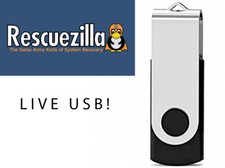
INCLUDED Brand New, High Quality, Fully Tested USB 3.0 Memory Stick
Latest Version of RescueZilla Live Installed onto the USB
Getting Started / Help Guides Same Business Day Handling
!! FREE SHIPPING !!
Questions? Feel free to contact us on with any questions.
RescueZilla Live USB | Disk Imaging | GParted | File Recovery | File Backup | USB3.0